
Store / NewEyes Sight / Set up
Setup guide · About 3 minutes
Set up NewEyes Sight
Everything happens in the NewEyes app. Pair once over Bluetooth, and it reconnects on its own after that.
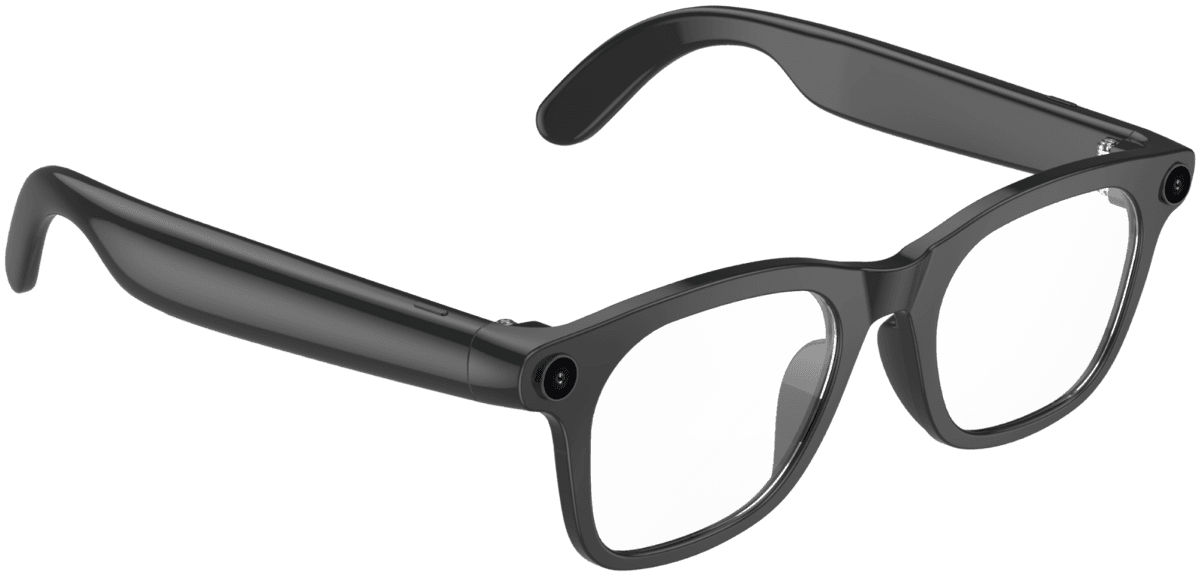
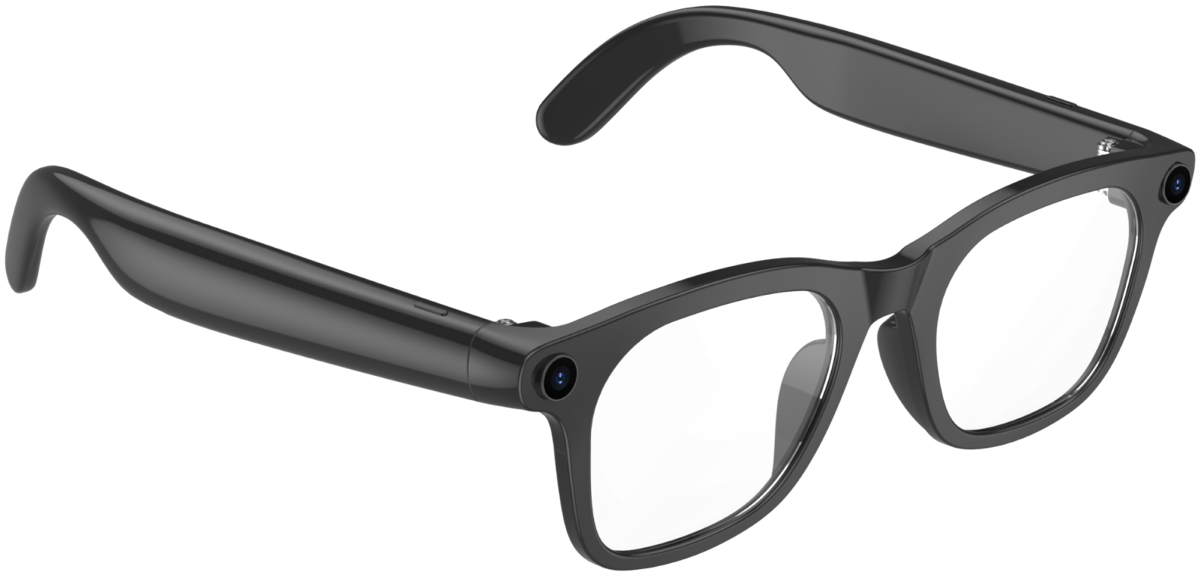
Before you start
- Charge Sight with the magnetic cable in the box before first use.
- Your phone: Bluetooth and Wi-Fi on, NewEyes app installed.
- Your NewEyes account (the one you ordered with, if you added your Support ID).
Step by step
- 1
Get the NewEyes app and sign in
Download NewEyes from the App Store or Google Play and sign in. Use the same account as your order so the device shows up as yours.
- 2
Turn on Sight and keep it next to your phone
Make sure Bluetooth is on in your phone's settings. Keep the device within arm's reach until setup finishes.
- 3
Open My Devices
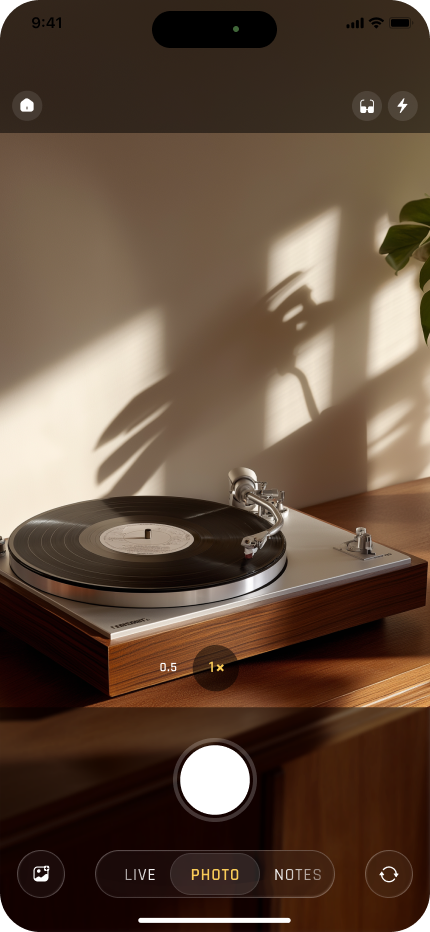
On the NewEyes camera screen, tap the Bluetooth icon at the top. This opens “My Devices”. (The glasses icon next to it is for Ray-Ban Meta.)
- 4
Tap + to add it
Tap + at the top right. NewEyes opens “Add Device” and starts “Searching for devices…”.
- 5
Tap Sight when it appears
Your glasses show up in a few seconds. Tap them.
- 6
Tap Pair if asked
If your phone shows a Bluetooth pairing request, tap “Pair”. NewEyes then shows “Connected” and the device appears in My Devices.
- 7
Take your first photo
Open Sight in My Devices and tap “Photo”, or press the button on the glasses. A preview arrives right away; ask NewEyes about it.
- 8
Sync full-quality photos
Tap “Sync HD”. NewEyes briefly turns on the glasses' Wi-Fi, joins it, and downloads your photos. Bluetooth stays connected the whole time.
Once it’s connected
Photo
Capture from the app or the button on the glasses, then ask about what you see.
Live Video
Stream what you see to NewEyes and talk it through.
Sync HD Photos
Pull full-quality photos off the glasses over a short Wi-Fi link.
If something’s off
NewEyes says “Bluetooth is off”+
Turn on Bluetooth in your phone's Settings, then return to My Devices.
It keeps “Searching for devices…”+
Make sure Sight is charged and on, and next to your phone. If it is connected to another phone, disconnect it there first.
“Pairing failed. Tap to retry.”+
Tap to retry. If it fails again, forget the glasses in your phone's Bluetooth settings and add them again from My Devices.
HD sync stops at “Joining glasses hotspot…”+
Keep the glasses next to your phone and make sure Wi-Fi is on. Allow NewEyes to join the network if your phone asks.
“Preview failed”+
The photo may still be saved on the glasses. Run “Sync HD” to get it.
“This device isn't supported”+
Email cs@collov.com with your order number. We will sort it out.
Still stuck?
Email cs@collov.com with your order number, or book 15 minutes with us.