
Store / NewEyes Halo / Set up
Setup guide · About 5 minutes
Set up NewEyes Halo
Halo is set up in two parts. First you bind it once in GlassX, the earphone maker's app (this step is also on the card in the box). Then you connect it to NewEyes. We are working on removing the GlassX step.
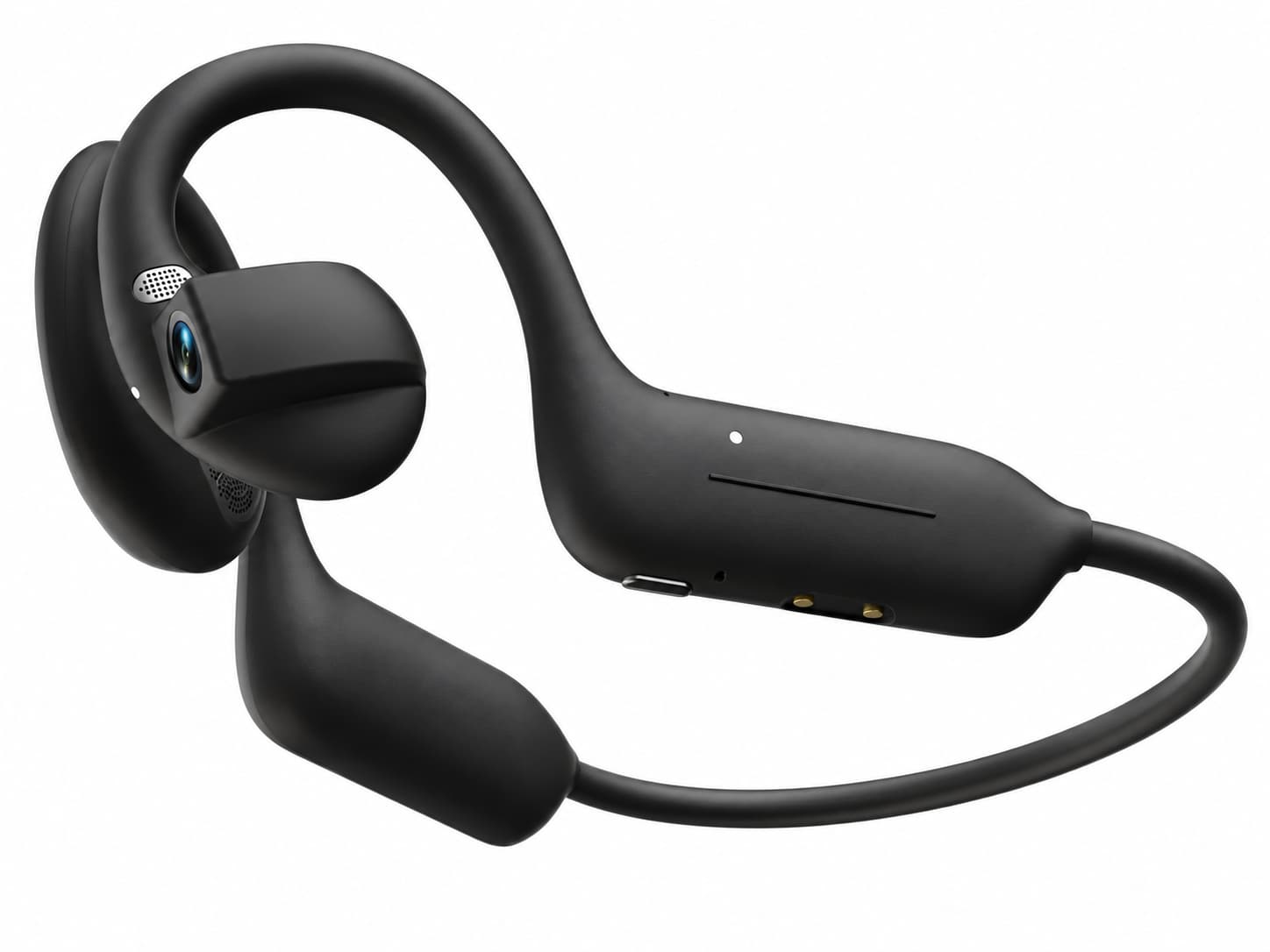
Before you start
- Charge Halo with the cable in the box before first use.
- Your phone: Bluetooth and Wi-Fi on. You will install two apps: GlassX and NewEyes.
- Your NewEyes account (the one you ordered with, if you added your Support ID).
Step by step
Part 1 · Bind Halo in GlassX (one time)
1Download GlassX
Scan the QR code on the card in the box, or search “GlassX” in the App Store or Google Play, and install it.
- 2
Tap the headphone icon
Turn Halo on. In GlassX, tap the headphone icon on the Home screen to connect a device.
- 3
Search and bind
On “Add Device”, make sure Halo is on and its light is blinking, then tap “Search”. Tap “Bind” next to your earphone (its name looks like E12-xxxx).
- 4
Tap Pair, then Get Started
When “Bluetooth Pairing Request” pops up, tap “Pair”. GlassX shows “Binding successful”; tap “Get Started”. You can close GlassX now.
Part 2 · Connect Halo to NewEyes
5Get the NewEyes app and sign in
Download NewEyes from the App Store or Google Play and sign in. Use the same account as your order so the device shows up as yours.
- 6
Turn on Halo and keep it next to your phone
Make sure Bluetooth is on in your phone's settings. Keep the device within arm's reach until setup finishes.
- 7
Open My Devices
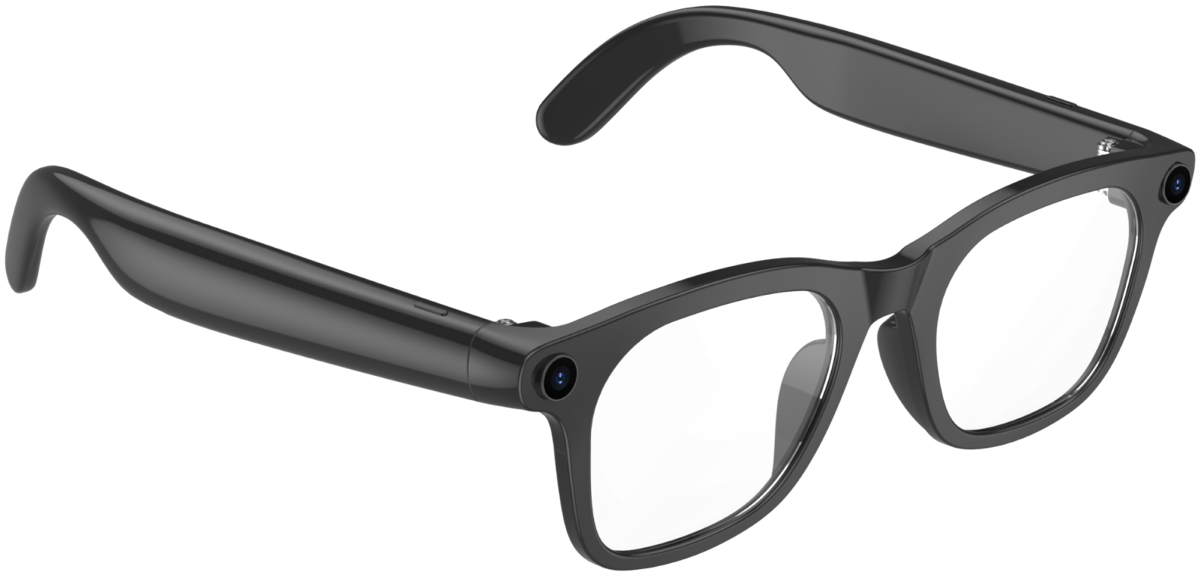
On the NewEyes camera screen, tap the Bluetooth icon at the top. This opens “My Devices”. (The glasses icon next to it is for Ray-Ban Meta.)
- 8
Tap + to add it
Tap + at the top right. NewEyes opens “Add Device” and starts “Searching for devices…”.
- 9
Tap Halo when it appears
Your earphone shows up in a few seconds, with a name like E12-xxxx (the same name you saw in GlassX). Tap it.
- 10
Tap Pair if asked
If your phone shows a Bluetooth pairing request, tap “Pair”. NewEyes then shows “Connected” and the device appears in My Devices.
- 11
Start a Live Call
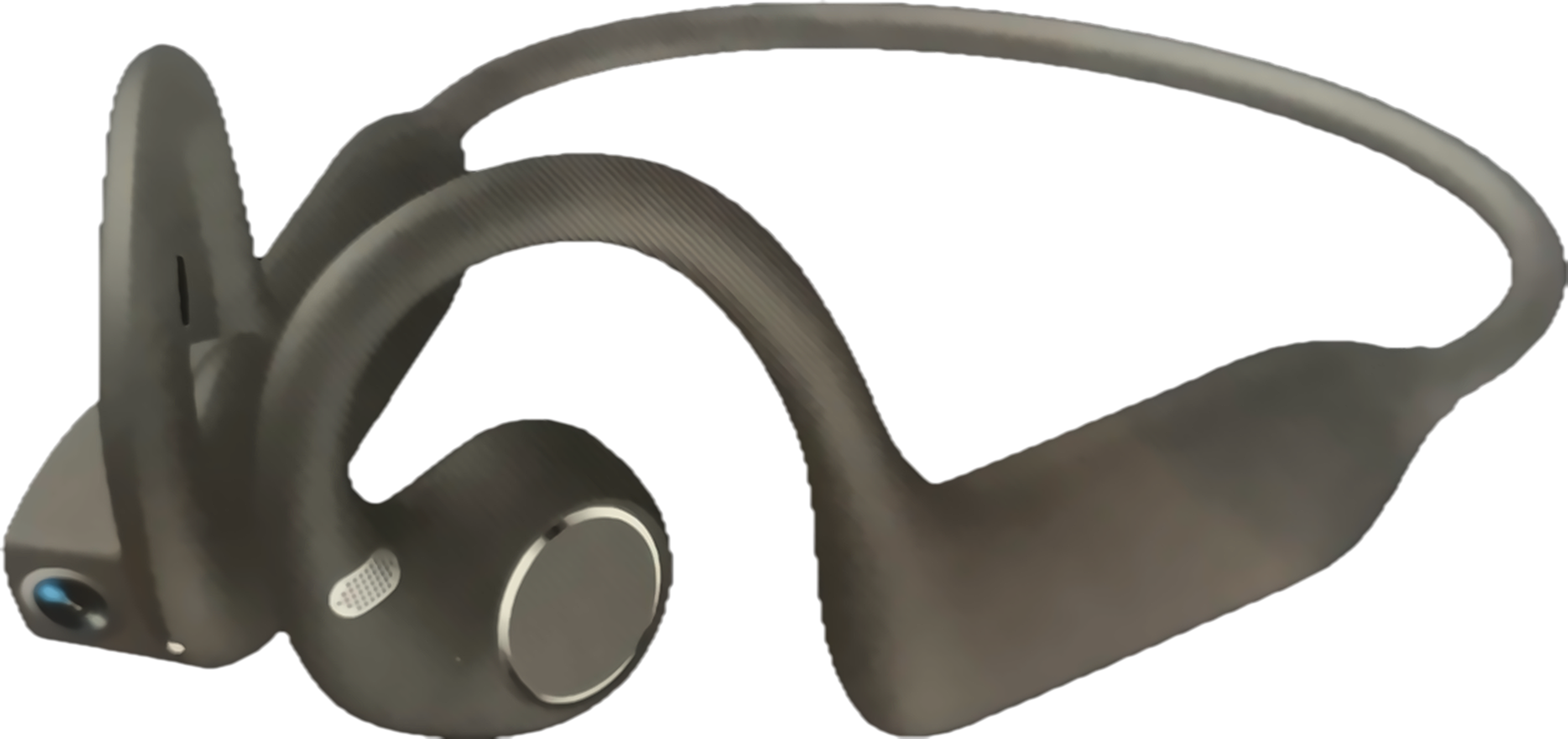
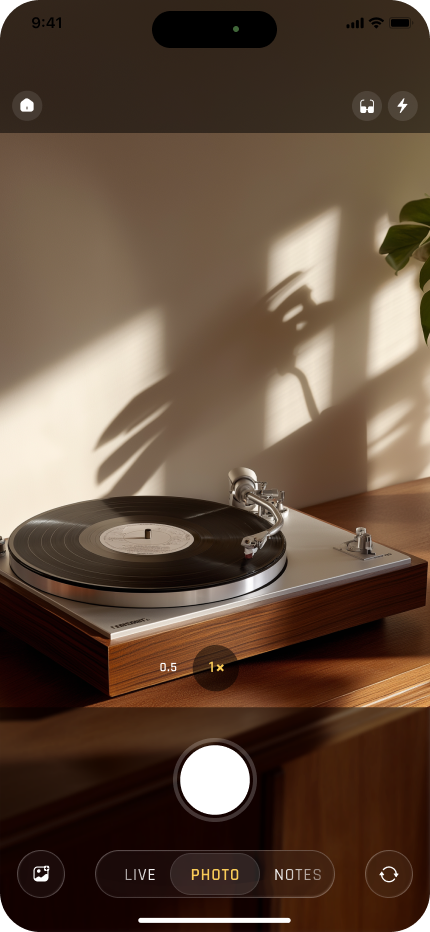
Open Halo in My Devices and tap “Live Call”. Talk normally. Say “look at this” and Halo takes a photo through its camera; NewEyes answers in your ear.
Once it’s connected
Live Call
Voice conversation with NewEyes through Halo, with snapshots when you say “look at this”.
Translate as you listen
Ask NewEyes to translate what you hear or read.
Calls and music
Halo works as normal Bluetooth headphones too.
If something’s off
GlassX can't find Halo+
Turn Halo on and wait for the indicator light to blink, keep it next to your phone, then tap “Search” again.
GlassX asks to join a Wi-Fi network+
That is only for importing Halo's own photos and videos into GlassX (Album → Import). You don't need it for NewEyes. If you do import, tap “Join”.
NewEyes says “Bluetooth is off”+
Turn on Bluetooth in your phone's Settings, then return to My Devices.
It keeps “Searching for devices…”+
Make sure Halo is charged and on, next to your phone, and that you finished Part 1 in GlassX. If it is connected to another phone, disconnect it there first.
“Pairing failed. Tap to retry.”+
Tap to retry. If it fails again, go to your phone's Bluetooth settings, forget Halo, and add it again from My Devices.
“Device is off or out of range”+
Halo turned off or moved away. Turn it back on near your phone; NewEyes reconnects on its own.
“HD transfer failed”+
Nothing was sent to the AI. Say “look again” or tap Retry.
“This device isn't supported”+
Email cs@collov.com with your order number. We will sort it out.
Still stuck?
Email cs@collov.com with your order number, or book 15 minutes with us.